Service flow
From the first request to a lasting record.
Follow a hydrant inspection from the app launcher through crew routing, completion, and the dashboard.
Walk through your workflow01 · Request
Understand what needs attention.
Request WR-104 records why hydrant H-1047 needs an inspection. The location, request details, and priority give the planner a place to start and stay available after the work is complete.
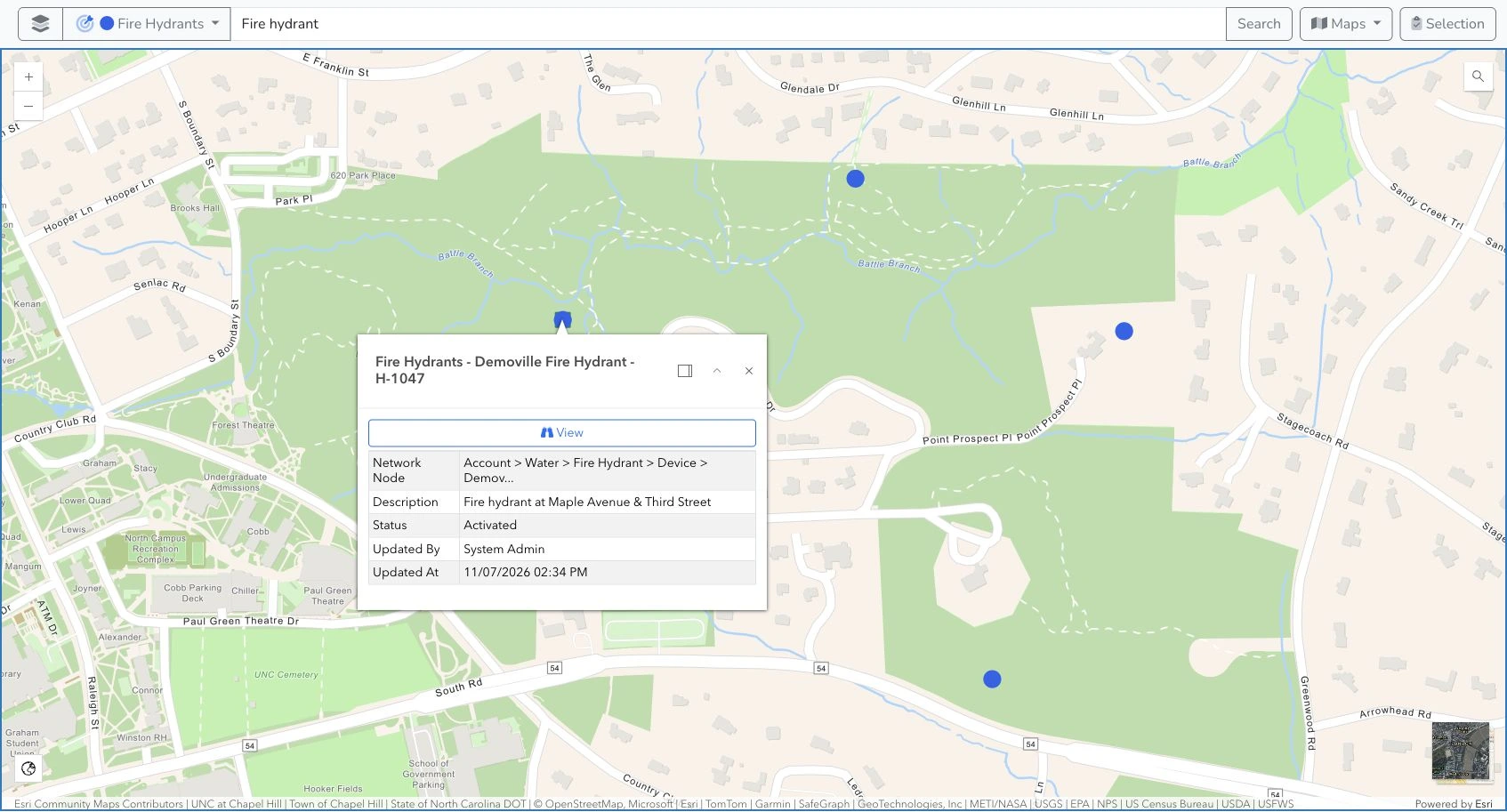
The asset’s existing records help the team understand the work in context.
Explore maps and assets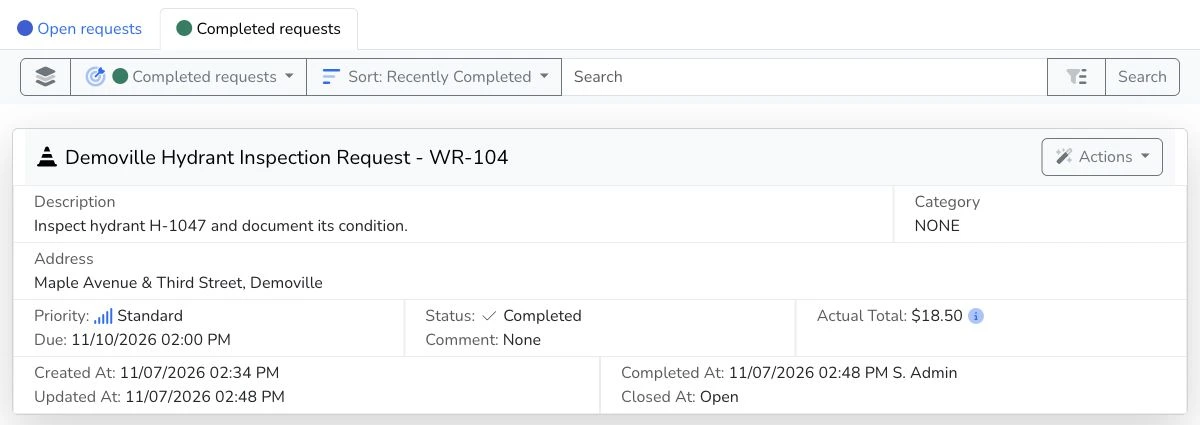
02 · Work order
Organize the work.
The planner reviews the request and uses a configured workflow to create or reuse a work order, then create a crew task linked to H-1047.
Classifications, assignments, and the information needed for the job keep the plan understandable to the people carrying it out.
Explore work planning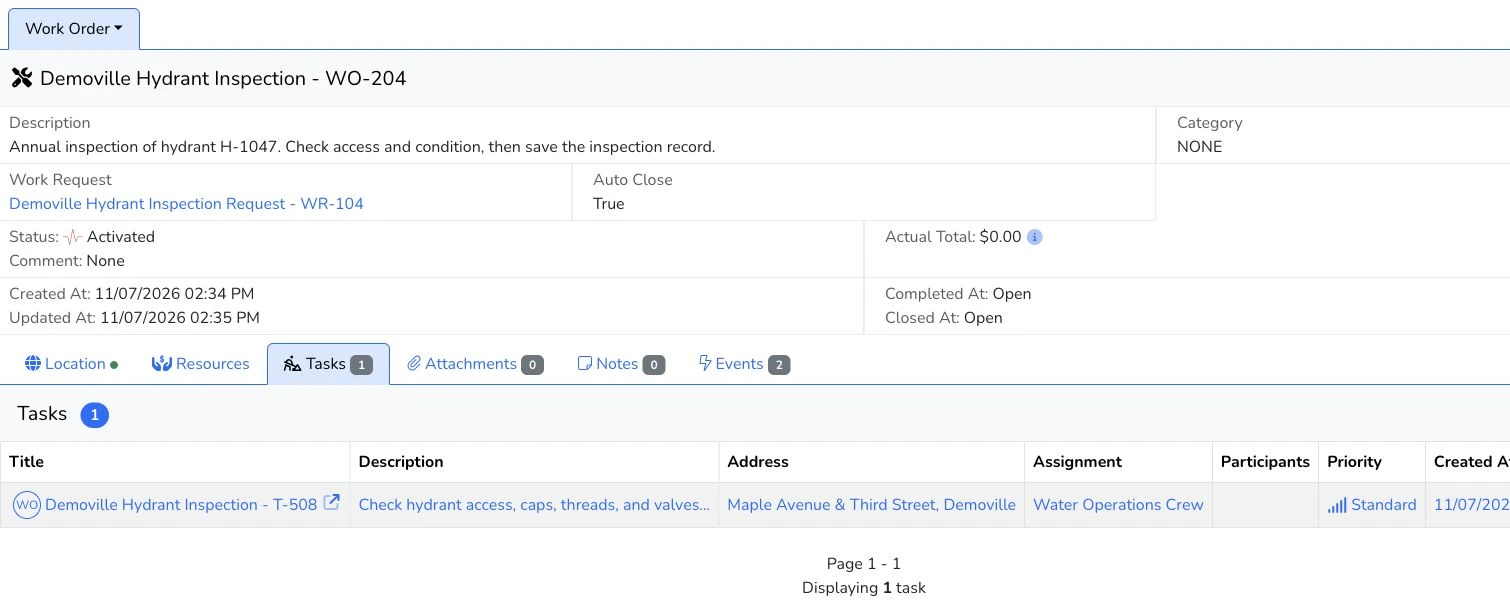
03 · Crew task
Carry out the task.
The crew opens the assignment with its linked asset, inspection details, and prior work available for context.
With My Work routing enabled, the crew can choose a start, see where the inspection falls in the numbered driving order, and open directions to the hydrant in Google Maps.
Explore focused crew work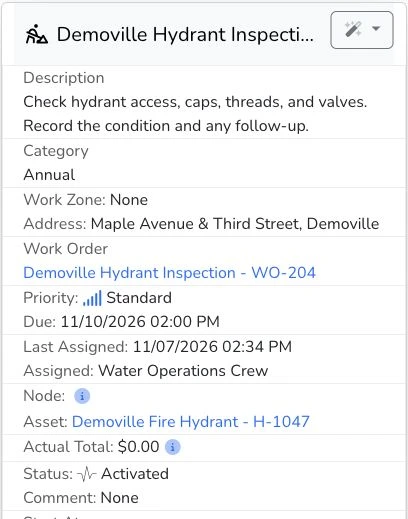
04 · Completion
Record what happened.
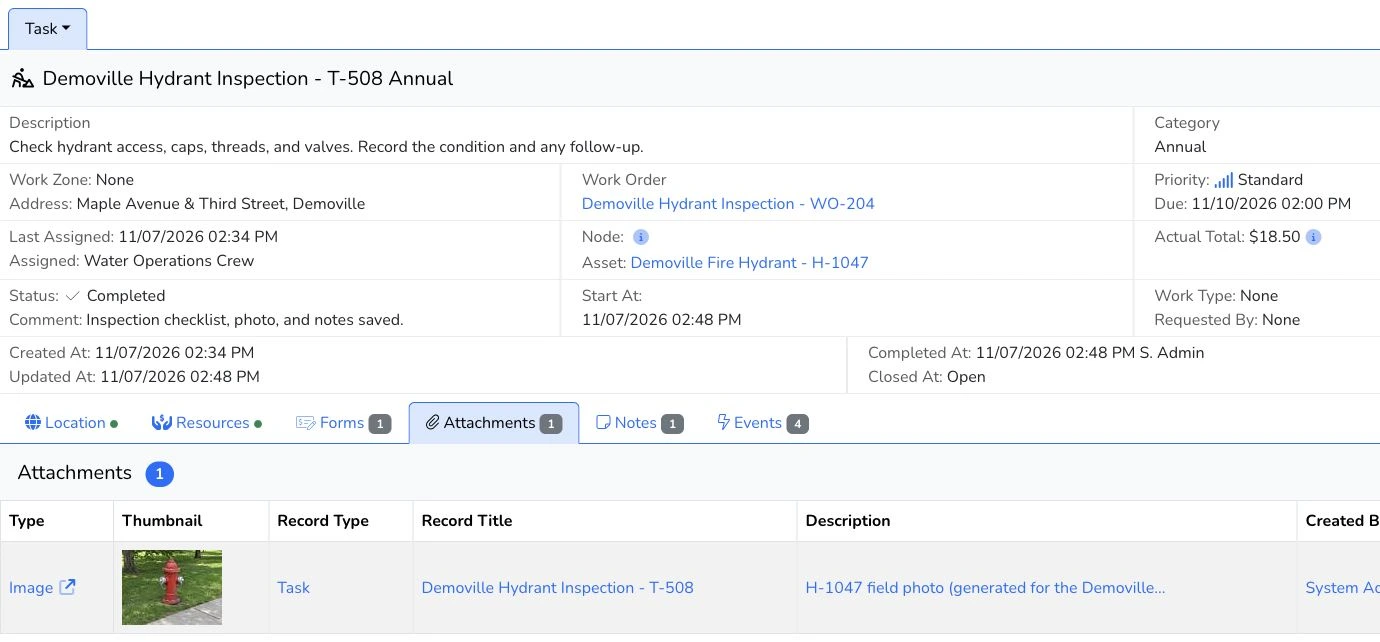
The crew saves the inspection form, photo, and notes, and records actual work charges. In this example, the configured task workflow requires the form and photo before completion.
A permitted user completes the task once its requirements are met. The work order and request continue through their own configured statuses.
Explore forms and evidence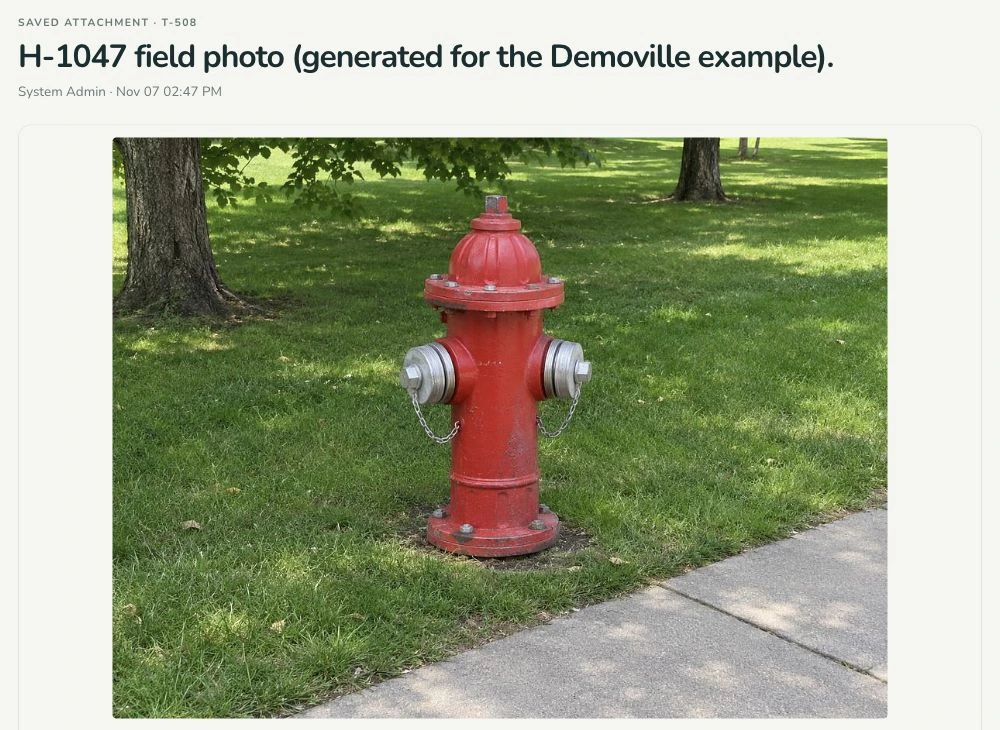
05 · Asset history
Keep the history useful.
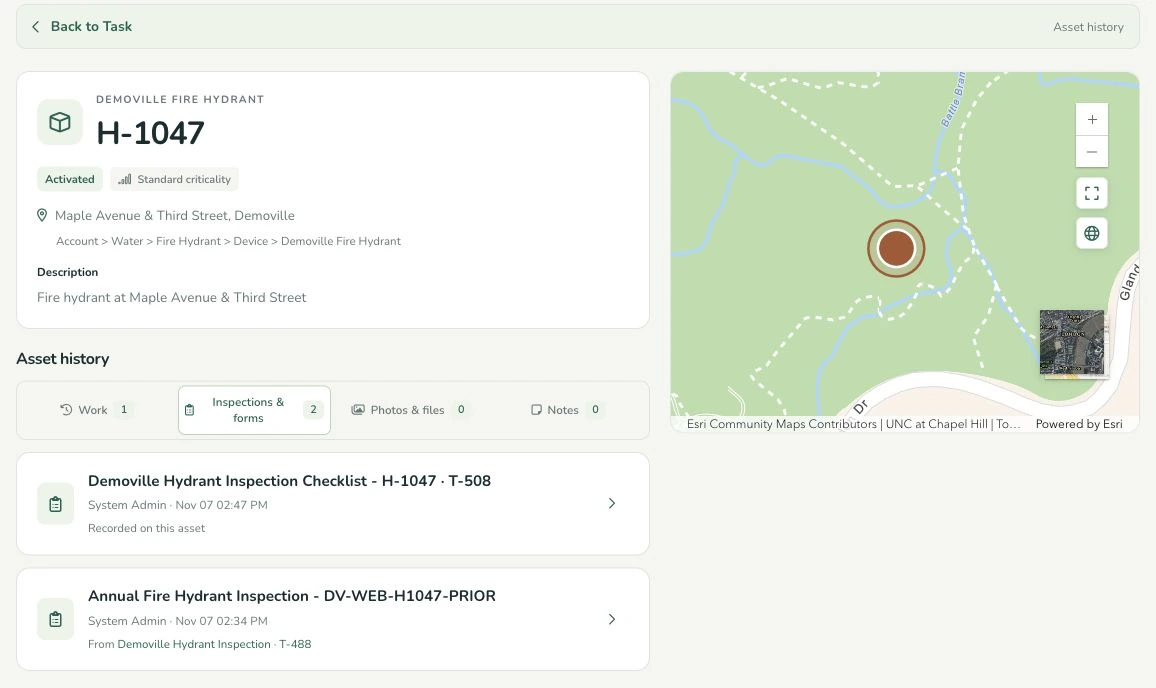
The completed task and its supporting records remain connected to H-1047. Actual work charges roll up through the applicable work and asset relationships.
When the hydrant needs attention again, the next person can see the work already done. Configured dashboards help teams review the underlying operational records.
Explore views and insights