811 utility locates
See where locates are needed, assign them to crews, and track each ticket through the field response.
Connect NC811 through CenterLogix and send responses back when enabled.

Features
Connect maps, assets, assignments, and completion records in workspaces configured for your team.
See Mavtrek in action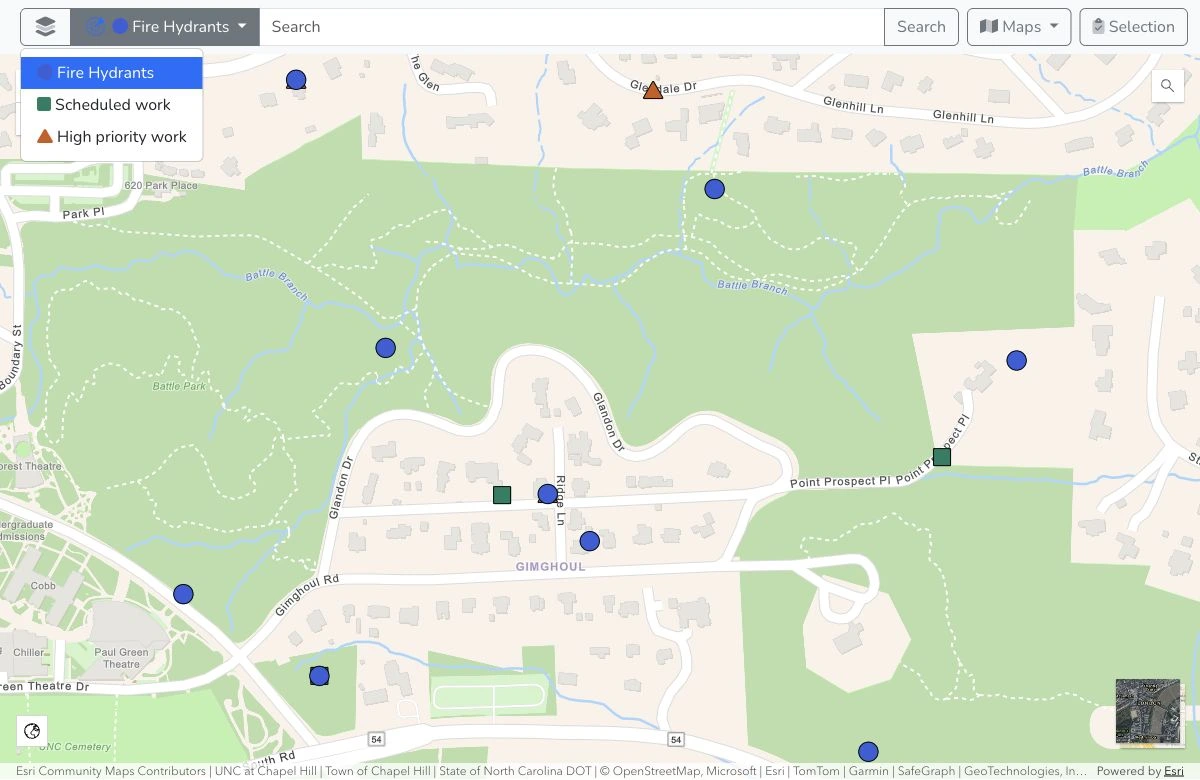
GIS & asset sync
Use the maps your team already knows. View configured ArcGIS or Diamond Maps layers alongside work in Mavtrek. See where crews are assigned and open an asset to see what’s already been done.
Keep asset details current. Import selected assets from ArcGIS Feature Services or Diamond Maps and schedule updates to bring selected GIS fields into Mavtrek. The asset’s inspection and repair history stays with it.
See how work becomes asset history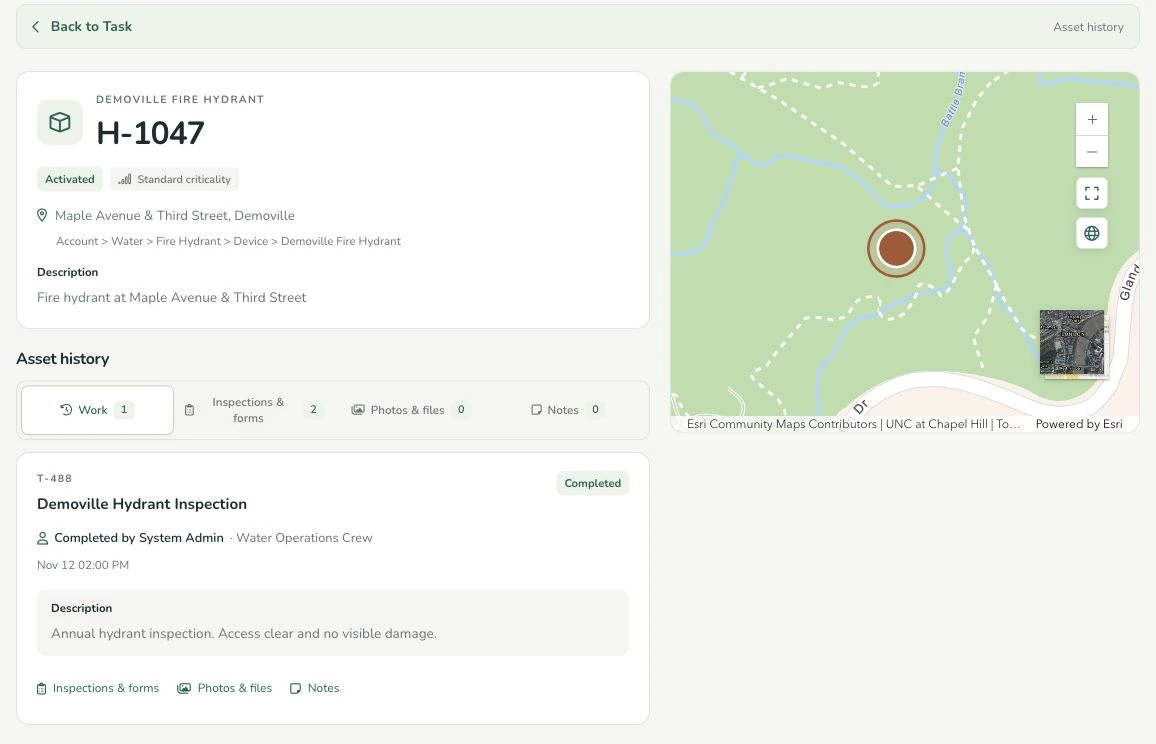
Work planning & coordination
Organize requests, work orders, crew tasks, priorities, and assignments around your operation. Configured workflows guide the information and actions the work needs.
Reusable Work Package recipes apply consistent classifications when a configured workflow creates work.
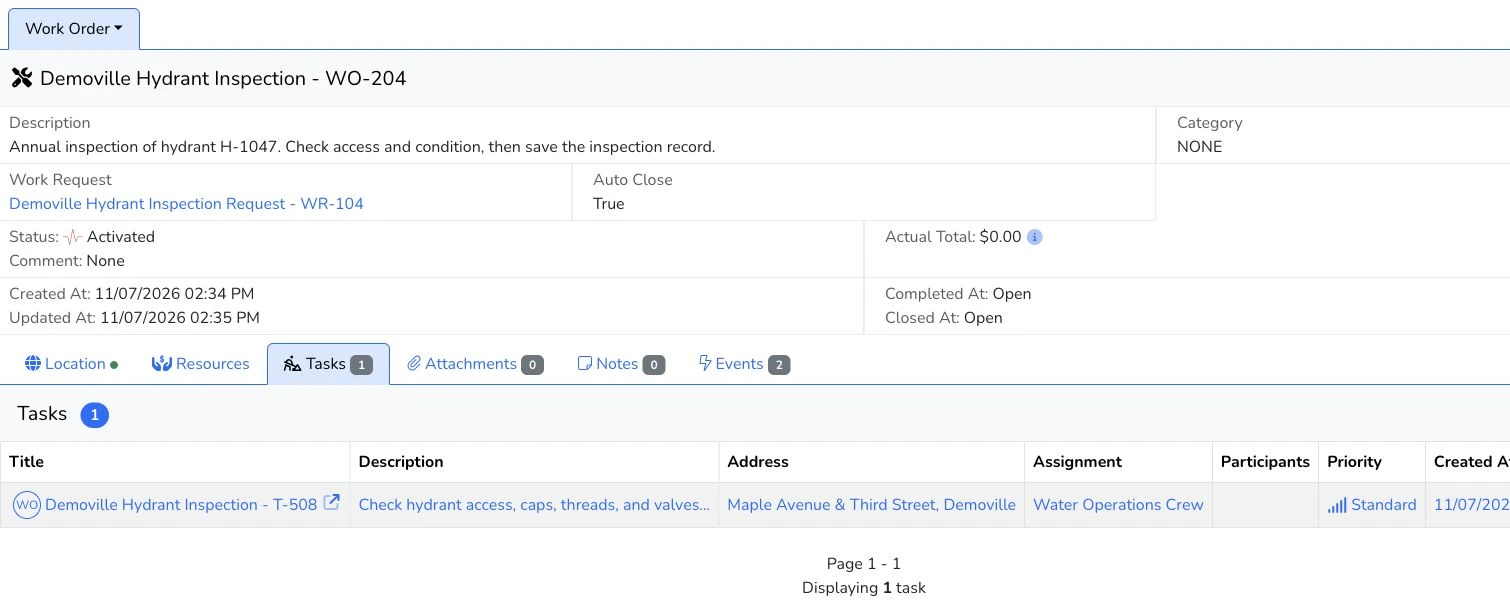
Tasks can stand alone or belong to a work order. A request creates further work only through its configured workflow.
See the work take shape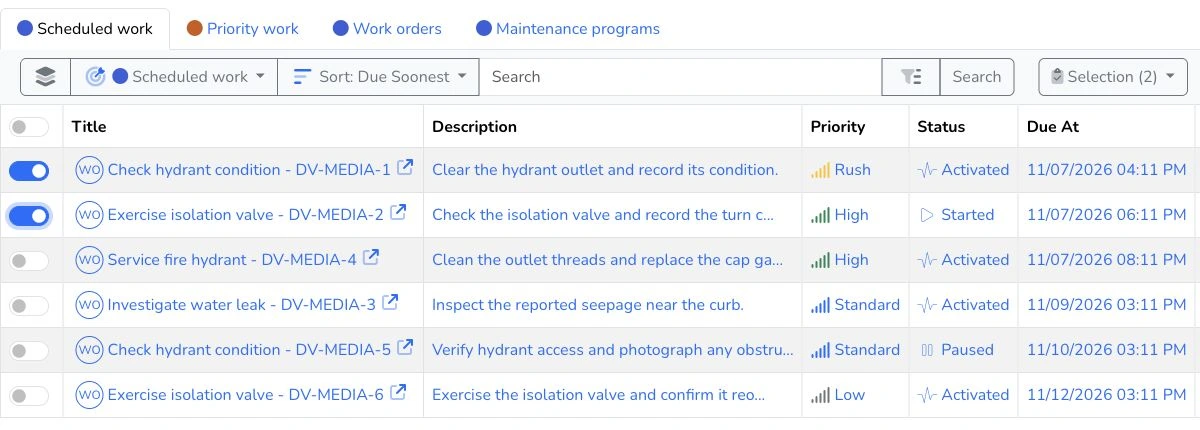
Service integrations
Bring locate tickets and resident reports into the place your staff already plans, assigns, and tracks work.
See where locates are needed, assign them to crews, and track each ticket through the field response.
Connect NC811 through CenterLogix and send responses back when enabled.
Bring resident reports into a work queue so staff can review the details, assign follow-up, and track progress.
Connect PublicStuff and send request updates back when enabled.
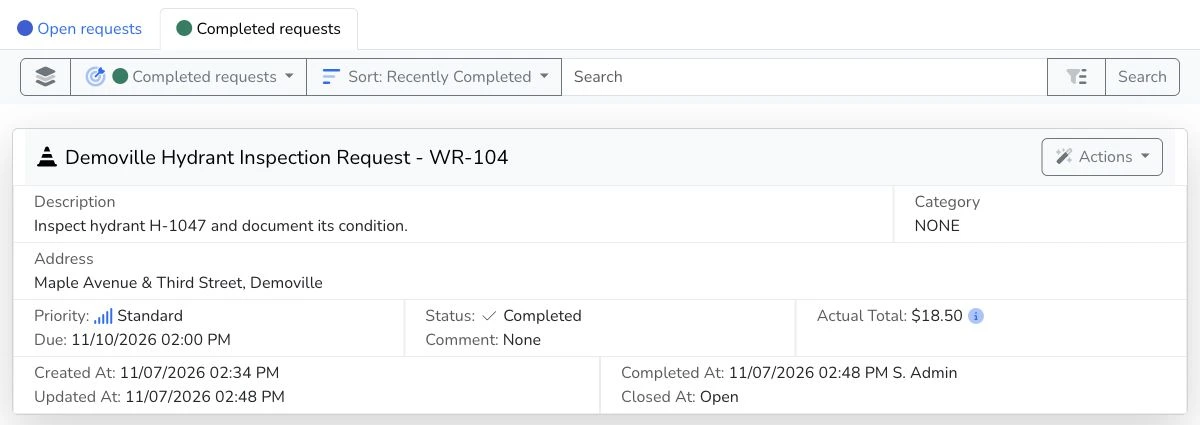
Keep the original request connected to the work order and the crew task so staff can see what happened next.
See how Greenville connected its systemsRecurring maintenance
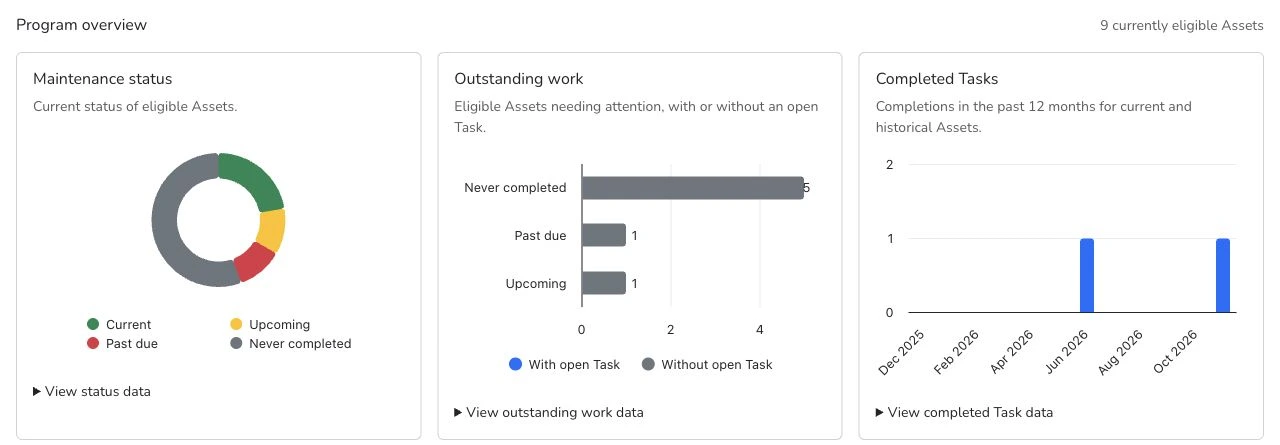
See what is current, upcoming, or past due for each asset’s maintenance programs. Planners select the work and create crew tasks.
Qualifying task completion updates the program’s maintenance history and next-due date. Recurrence follows completion; due dates do not automatically generate tasks.
My Work
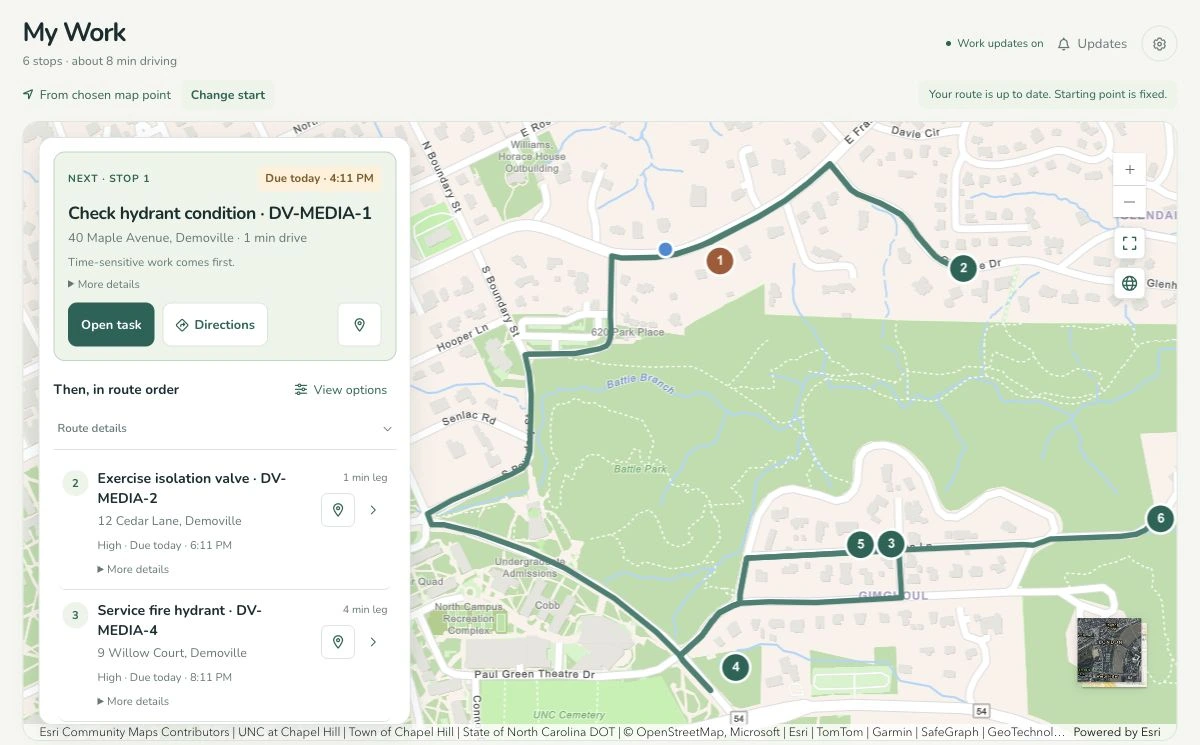
Open My Work to see the crew’s assignments and choose where to start. For work with a location, crews get numbered stops and estimated drive times in an order that accounts for priority and due dates.
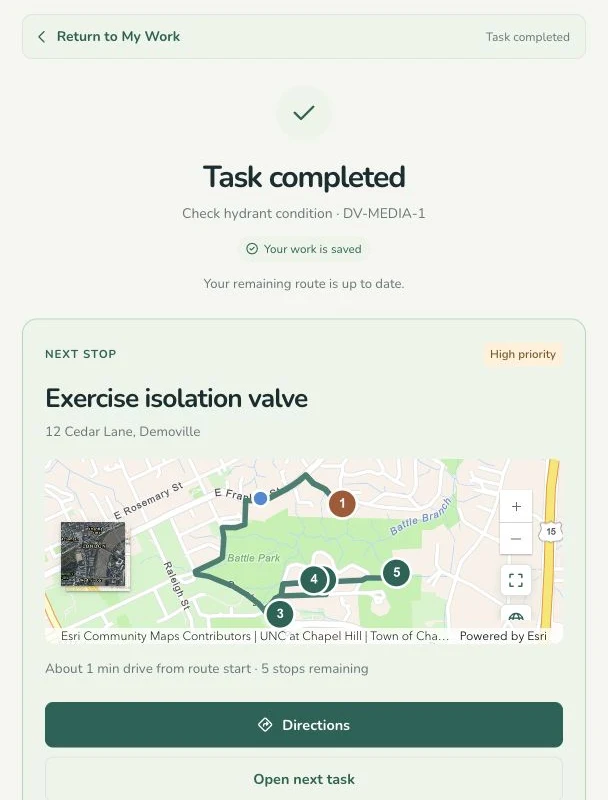
At the stop, crews can open directions, review the asset’s history, and save checklists and photos with the job. Once they complete it, the next stop is ready.
Watch My Work routingForms & evidence
Save forms, photos, files, and notes alongside operational records. Configured forms give crews a consistent way to capture details from the field.
Selected task transitions can require a saved form or an attached file before completion. The evidence stays connected to the work it documents.
See how completion is recorded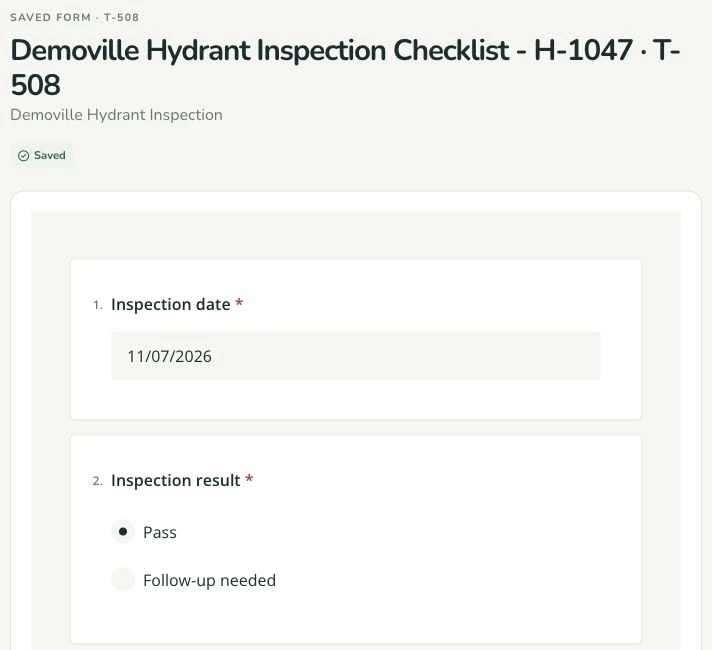
Focused views & operational insight
Configure Map, Grid, Card, and Dashboard views around shared operational records. Review operational measures and drill into the records behind them.
Choose the fields, filters, ordering, and map symbols that help your team see the work. Available views depend on the record type and configuration.
Configured live updates flag relevant changes while filtered or selected grid views stay in place. Available actions follow your permissions.
Excel export includes selected rows on the current grid page and its visible configured columns.
See how views fit into team apps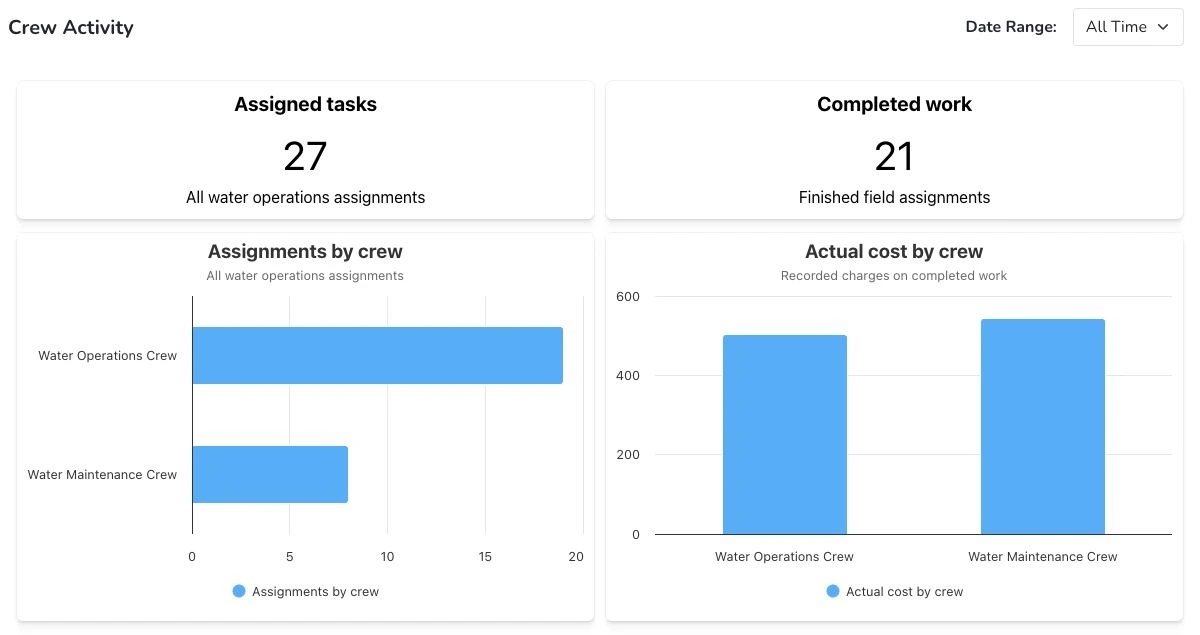
Role-focused apps
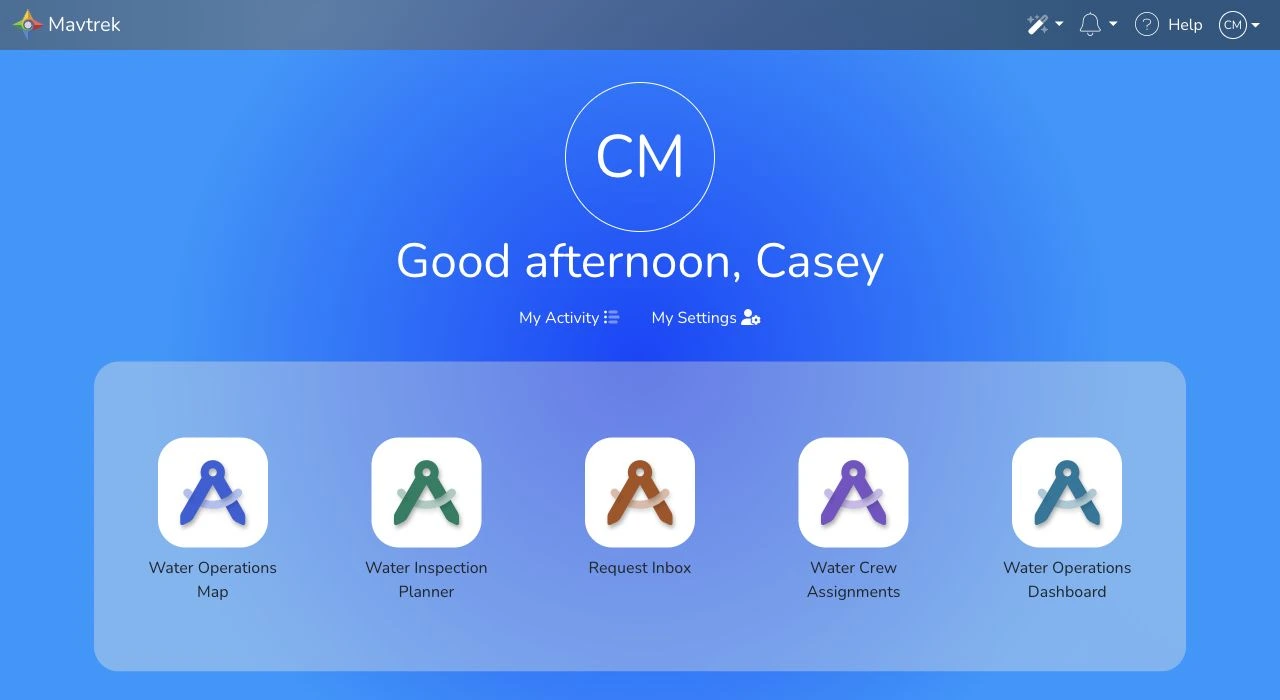
We create custom apps in Mavtrek around each team’s responsibilities. A dispatcher can triage requests in a Grid, a crew lead can review assignments in a Card view, and a supervisor can track progress on a Dashboard.
An app can bring together Map, Grid, Card, and Dashboard views of shared operational records. We assign app access by user group so people can open the apps they need from the launcher.
See how we shape your workspace